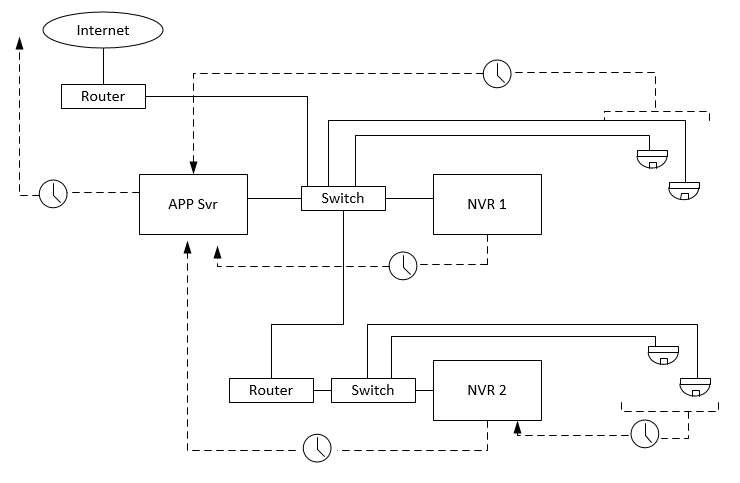
A useful feature that is automatically installed with Valerus is an NTP server program named Meinberg. This is used to automatically synchronize the date/time from the Valerus Application Server (no manual configuration required) to all Valerus NVR's on the system but can also be used to synchronize IP cameras and devices connected to the network if so desired but is not normally required.
It should be noted however that unless the Valerus Application Server is itself connected to an external time source such as an Internet clock or GPS clock server the time will be reliant on the accuracy of the internal PC clock on that machine.
In order to sync the Valerus Application Server to an external clock please follow these instructions.
Go to the windows program list - Meinberg. Expand folder - highlight "stop NTP service" and right click - select "more" and "open file location". Right click on "Stop NTP service" and select "run as administrator". The service will stop.
Go to the App server and open notepad in admin mode. Click on search icon and type in "notepad". Once it shows in the list right click it and select to run as admin.
Once open navigate to c:\program files(x86)\ntp\etc and open the ntp.config file. Make sure notepad selects all files not just txt files as shown in the lower right selection box.
If you scroll down you will see entries for:
#server time.windows.com
#server pool.ntp.org
#server 10.10.20.2
These are remarked out statements for example time servers.
You can remove the # sign to engage the entry or you can enter your own time server.
Save the file.
The App server will now be syncing with the time server configured.
Note that since the NVR's are getting time sync from Valerus Application Server it is not recommended to use any other form of time sync such as Windows or third party applications.
Topology example:
For Valerus Clients the Time Settings are adjustable in the User settings as such: 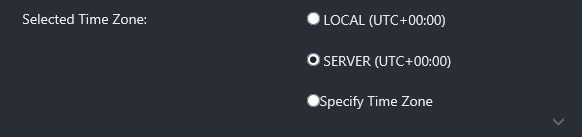
LOCAL = Time and Time Zone settings are derived from local PC clock.
SERVER = Time and Time Zone settings are taken from Valerus Application server.
SPECIFY = Select a Time Zone from a list.